Image to video starts where a photo ends. Instead of describing a scene from scratch, you hand the model a frame it must respect — a product shot, a portrait, a rendered still — and tell it how that frame should move. On ReelSeconds the animation runs on Kling 2.6, which generates real motion around your subject while keeping the details that matter recognizable. That distinction is the whole value: a text prompt invents everything, but image-to-video preserves the exact thing you already have and only adds the movement. For anyone with a hero composition they cannot afford to lose — a labelled product, a specific face, a brand frame — that control is worth more than raw generation.
Why animate from an image
Your subject survives the clip
The reason to start from a frame rather than a sentence is fidelity. A product keeps its label legible, a face keeps its likeness, a composition keeps its layout — Kling 2.6 anchors on the still and generates motion around it instead of re-imagining the scene. When the thing on screen has to be a specific thing, image-to-video is the only honest way to get motion without gambling the identity away.
Real motion, not a pan-and-zoom
A parallax slideshow moves the whole frame; image-to-video moves within it. Kling 2.6 generates believable movement — drifting particles, rotating products, hair and fabric that respond to an implied breeze — so the result reads as a shot, not a slideshow transition. Because the motion obeys weight and momentum, even a subtle push-in feels filmed rather than faked.
The end of the photo-to-video pipeline
Pair image-to-video with the image studio and you have a full custom pipeline: generate the exact frame you want — right subject, right ratio, right light — on Nano Banana or GPT Image 2, then animate it here. That two-step is the cheapest route to a bespoke clip that exists nowhere else, and every stage runs on the same ReelSeconds balance.
Vertical, fast, and refundable
Animate straight into a 9:16 frame for short-form, choose 5 or 10 seconds, and pay a flat 25 credits shown on the button. Failed runs refund automatically, so iterating on the motion prompt is a budgeting decision, not a risk. Drop a frame, try three motions, keep the one that moves the way you pictured.
How to use it
- 1
Switch to the Image to Video tab
The studio opens on text-to-video; the second tab is image-to-video. Switch to it to reveal the start-frame dropzone — the same Kling 2.6 model, driven by a picture instead of a sentence.
- 2
Drop in your start frame
Drag a photo, product shot or AI-generated still into the dropzone. The clearer and higher-resolution the frame, the more the model has to hold onto — a clean composition animates far better than a noisy one.
- 3
Describe the motion, not the scene
The image already carries the scene, so the prompt is about movement: "slow orbit around the product," "hair and fabric drift in a breeze," "camera pushes in as light blooms." Motion direction is where image-to-video lives.
- 4
Generate and download
Pick 5s or 10s and Create — 25 credits, shown on the button. Kling 2.6 renders the motion at 1080p while keeping your subject intact; download the MP4 or send it back through as a new start frame.
What people animate

E-commerce listings that move
Feed a hero packshot in and Kling 2.6 rotates, glints and floats the product while keeping label text legible — listing pages and ads get motion without a studio booking.
Portraits and brand frames with life
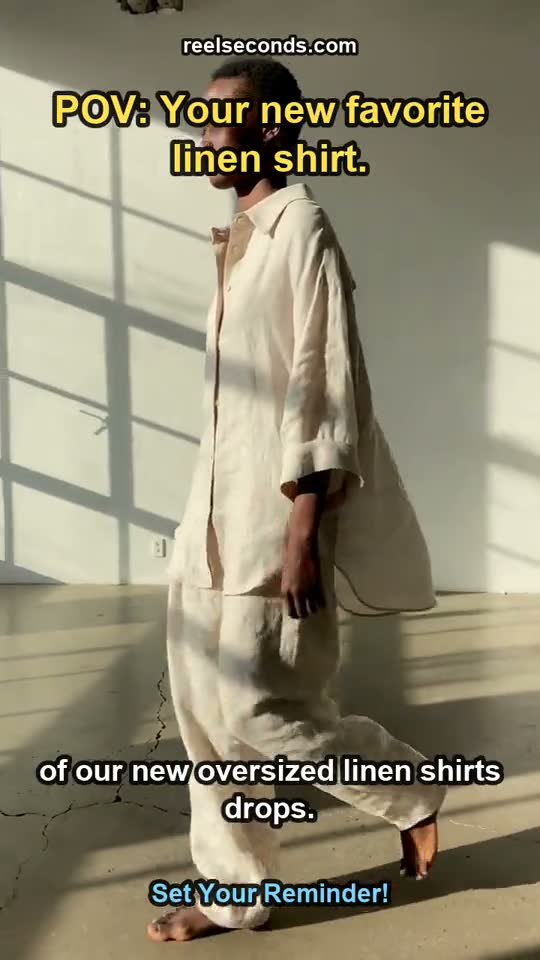
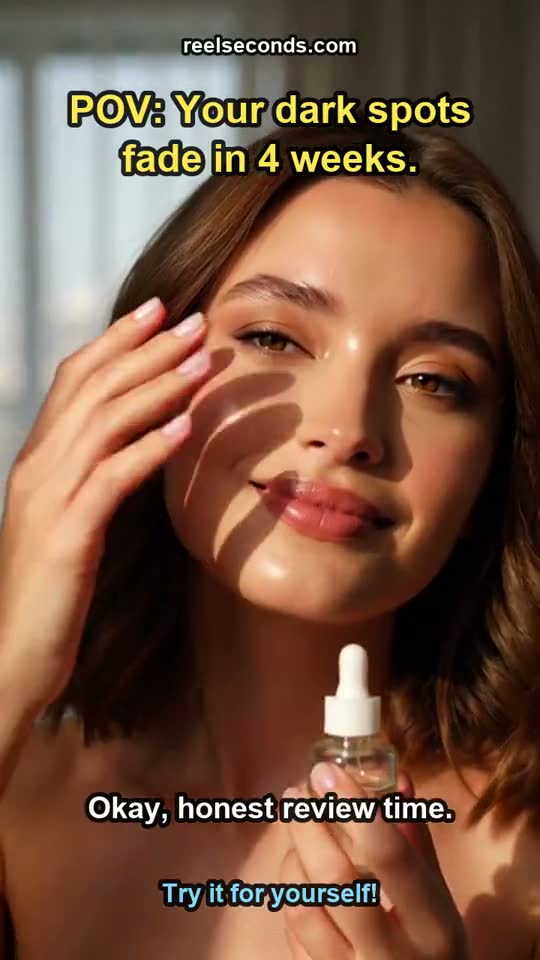
Animate a portrait or a title card with subtle motion — drifting light, a slow push-in — so a static brand asset becomes a moving one without losing its likeness.
Storyboard frames into animatics
Run a storyboard frame through image-to-video to test whether the composition survives camera movement — a 25-credit answer to a question that used to need a pre-vis contractor.
AI stills brought to motion
Generate the perfect still on the image studio, then animate it here. It is the cheapest way to produce a clip whose exact subject you controlled from the first pixel.
Model specifications
| Model | Kling 2.6 (Kuaishou) — the model that animates your frame |
|---|---|
| Mode | Image-to-video (upload a start frame) |
| Input | Drag-and-drop image dropzone |
| Resolution | Native 1080p (fixed) |
| Durations | 5s or 10s per run |
| Aspect ratios | 9:16 · 16:9 · 1:1 |
| Cost | 25 credits per generation, shown on the button |
| Failure policy | Failed runs auto-refund to your balance |
Good to know
What model animates my image? Kling 2.6 — the same live model behind text-to-video, driven by your uploaded frame. It generates real motion between and around the still while holding the subject stable, which is what separates it from a canned pan-and-zoom effect.
What kind of image works best? A clean, high-resolution frame with a clear subject animates best. Product shots, portraits and AI-generated stills all work; busy or low-quality images give the model less to preserve. If you need the perfect frame first, generate it on the image studio and bring it here.
Does the subject stay recognizable? Yes — that is the point of image-to-video over pure text-to-video. When a specific product, face or composition has to survive the clip intact, starting from the frame anchors identity while the model invents believable motion around it.
How much does a run cost? A generation is 25 credits at 1080p, shown on the Create button before you commit. Failed runs refund automatically. Sign-up includes 20 free credits, so your first animation can cost nothing.
Can I make a photo-to-video pipeline? Yes, and it is the cheapest route to a custom clip: generate the exact start frame on Nano Banana (1 credit) or GPT Image 2 (2 credits) in the image studio, then animate it here. The image page for each model walks the full two-step flow.
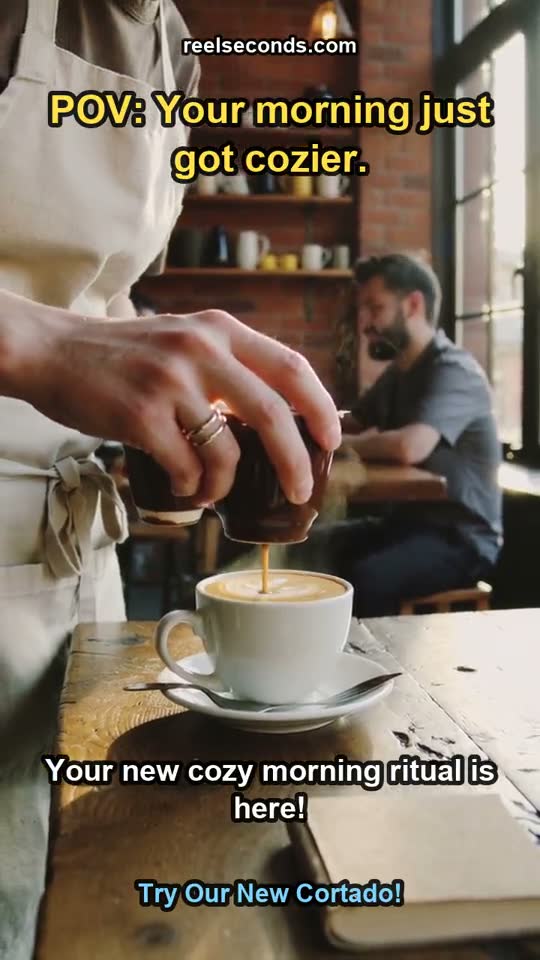
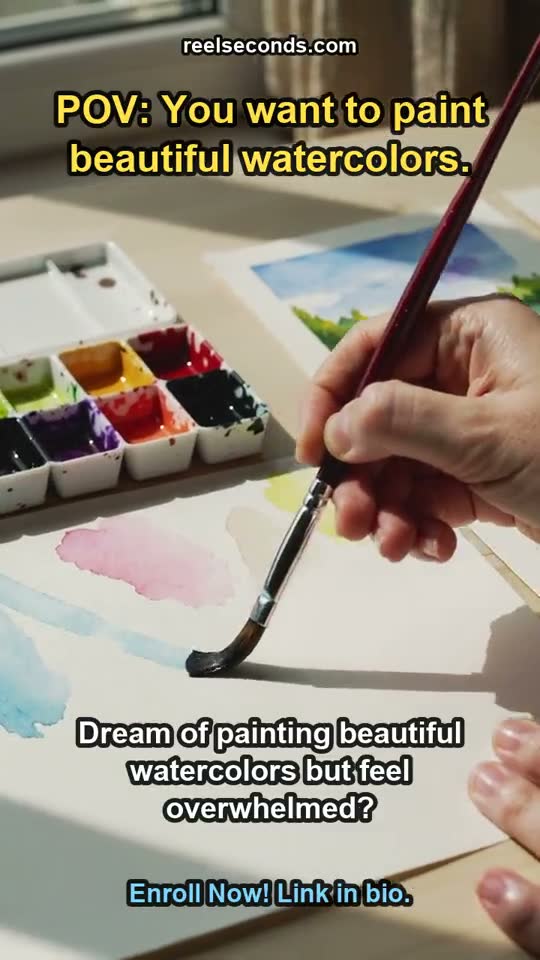
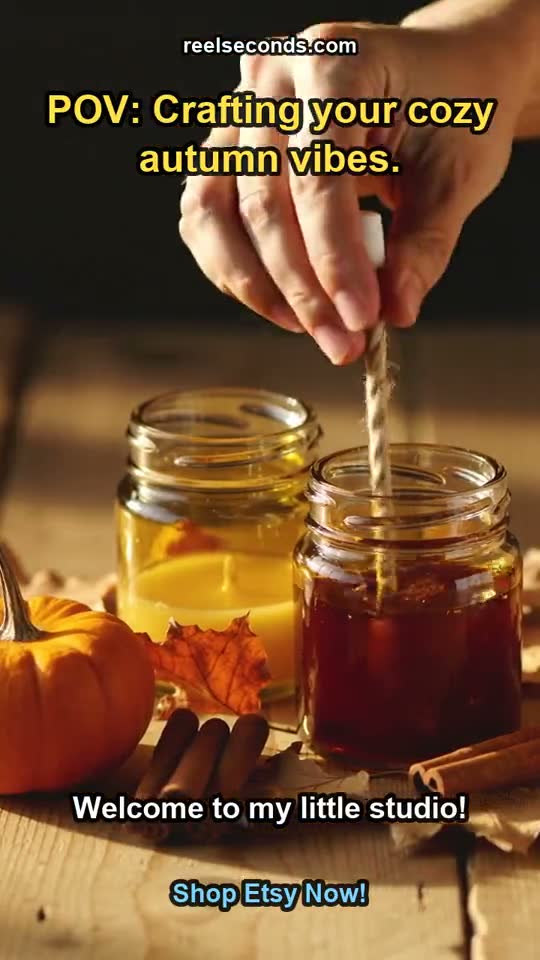
When the subject on screen has to be a specific one, image-to-video is the tool: it keeps what you have and adds only the motion. Drop a frame into the studio above, describe how it should move, and watch Kling 2.6 bring it to life.