An AI image editor is a different tool from an image generator: instead of inventing a picture from nothing, it takes one you already have and changes exactly what you ask while keeping the rest. On ReelSeconds that runs on GPT Image 2 in image-to-image mode — you upload a source, write an instruction, and the model re-renders it with the composition intact. That control is the whole value. Re-prompting from scratch gambles the entire image every time; image-to-image treats your upload as the ground truth and edits around it, which is what makes it safe to use on real assets — a product photo, a brand frame, yesterday’s draft — where the structure has to survive.
Why edit with a prompt
Your composition is preserved
The reason to edit rather than regenerate is fidelity to what you already have. GPT Image 2 anchors on your uploaded source and holds its structure — the layout, the subject placement, the framing — while it applies the change you described. A restyle stays the same shot in a new light; a background swap keeps the subject exactly where it was. That preservation is what separates a controlled edit from a lottery reroll.
Restyle, recompose, or clean up
One instruction covers a wide range: shift the art direction and lighting, swap or simplify a background, remove a distraction, or upscale a rough draft into a finished piece. Because the edit is described in language, you iterate by editing words — "warmer, softer shadows, keep the subject" — instead of masking and painting by hand. It is the fastest path from an image that is almost right to one that ships.
Safe on real assets
The riskiest thing about AI editing is losing the exact thing that mattered — a product’s label, a face’s likeness, a brand’s layout. Image-to-image is built to avoid that: it revises around the structure it was given rather than reimagining it, so a controlled edit of a real photo keeps the details you cannot afford to lose. That makes it usable for actual production work, not just experiments, provided you hold the rights to the source you upload.
Edit, then animate
Because the editor lives inside a video platform, a finished edit is one click from motion. Get the still exactly right — the corrected lighting, the swapped background, the cleaned-up composition — then send it into the video studio as a Kling 2.6 image-to-video start frame. The edited frame becomes a moving clip on the same balance, closing the loop from source photo to polished video without ever leaving the studio.
How to use it
- 1
Switch to the Image to Image tab
The studio opens on text-to-image; the second tab is image-to-image. Switch to it to reveal the source-image dropzone — the same GPT Image 2 model, driven by your upload plus an instruction.
- 2
Upload the image to edit
Drag in the photo, render or draft you want to change. Image-to-image preserves the structure of what you upload far more faithfully than re-prompting from scratch, which is what makes it usable for controlled revisions of real assets.
- 3
Describe the change, not the whole scene
The image already carries the scene, so the prompt is the edit: "make the lighting warmer," "swap the background to a marble surface," "restyle as a watercolour." Name what should change and what must stay the same.
- 4
Generate and iterate
Create — the credit cost is on the button. Read what changed, patch the instruction, and re-run. Two or three focused edits beat ten scattershot rerolls, and failed runs refund automatically.
What people edit
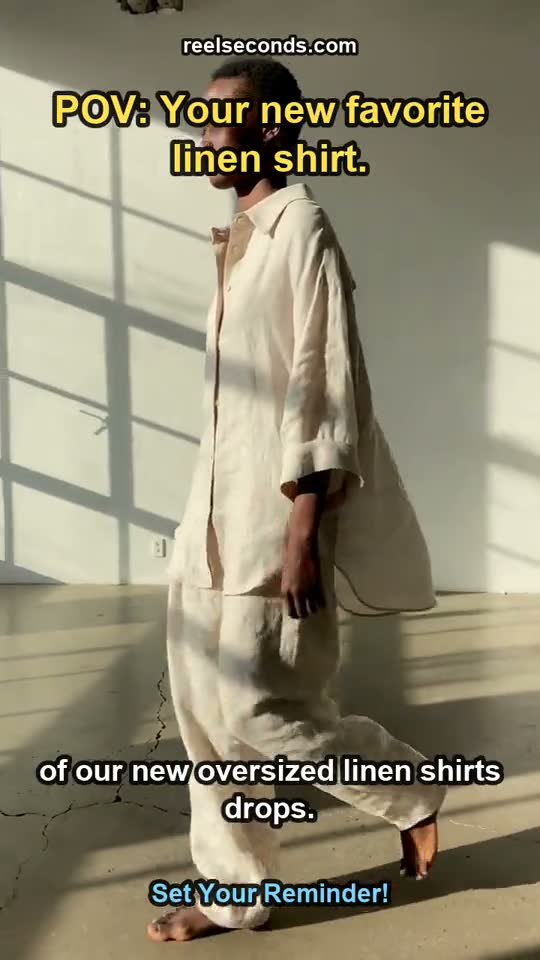
Restyling product photos
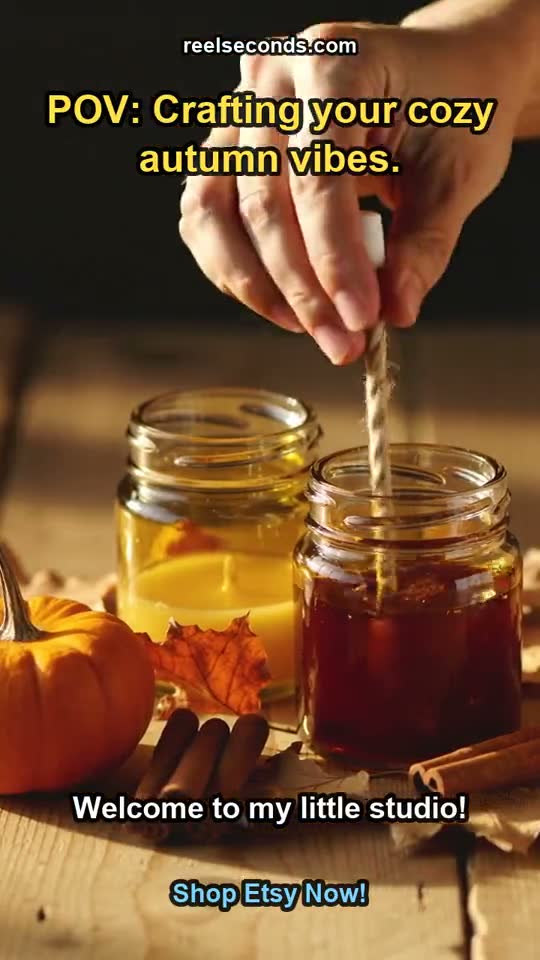
Take a flat product shot and re-render it under a new art direction — richer light, a cleaner background — while keeping the product itself and its label intact.
Background swaps and cleanup
Replace a distracting background, simplify a busy scene, or remove an unwanted element with a single instruction instead of hand-masking in an editor.
Upscaling and finishing drafts
Turn a rough one-credit draft into a finished piece: re-render it on GPT Image 2 with more detail and the resolution the final needs.
Consistent brand revisions
Bring a set of images into one look — the same lighting and treatment applied across a series — so a brand’s visuals stay coherent without a manual pass on each.
Model specifications
| Model | GPT Image 2 (OpenAI) — the model that edits your image |
|---|---|
| Mode | Image-to-image (upload a source) |
| Input | Drag-and-drop source-image dropzone |
| Preserves | Composition and subject structure |
| Resolutions | 1K · 2K · 4K |
| Cost | From 2 credits per edit, shown on the button |
| Pipeline | Edited still → Kling 2.6 image-to-video |
| Free to start | 20 credits on sign-up |
Good to know
What is an AI image editor? It edits an existing image from a text instruction instead of from scratch — you upload a source and describe the change, and the model re-renders it while preserving the composition. On ReelSeconds that runs on GPT Image 2 in image-to-image mode, the model named on the MODEL chip.
Does it keep my original composition? Yes — that is the defining behavior of image-to-image versus plain generation. GPT Image 2 preserves the structure of your uploaded source far more faithfully than re-prompting would, so a restyle or recomposition changes what you asked for and leaves the rest recognizable.
What kinds of edits work? Restyling (new art direction, new lighting), recomposition (swap a background, adjust a scene), and cleanup or upscaling a rough draft into a finished piece. Name what should change and what should stay; the more targeted the instruction, the more controlled the result.
How much does an edit cost? Image-to-image on GPT Image 2 runs from 2 credits, shown on the Create button before you commit, with automatic refunds on failed runs. Sign-up includes 20 free credits, so a first edit can cost nothing to try.
Can I animate the edited image? Yes. Once the edit is right, send the result into the video studio as a Kling 2.6 image-to-video start frame — edit the perfect frame, then animate it. The whole flow runs on one ReelSeconds balance.
Editing beats regenerating whenever the thing on screen has to survive the change. Upload an image to the studio above, describe the edit, and let GPT Image 2 revise it while keeping what matters — then animate the result if you want it to move.