An AI image generator turns a description into a picture, but the useful version gives you a choice of models — because a thumbnail draft and a print-grade hero are not the same job. On ReelSeconds the image studio routes between Nano Banana, the one-credit speed model for volume and exploration, and GPT Image 2, the two-credit finals model that climbs to 4K and renders legible in-image text. Draft cheap, finish sharp is the whole idea: you try ten compositions for the price of a couple of finals, keep the one that works, and re-render it at delivery quality. And because it lives inside a video platform, any still you generate is one click from becoming a moving clip.
Why generate images here
Two models, one studio
Most generators lock you to a single model and a single price point; this one lets you match the model to the job. Nano Banana renders in seconds at one credit — perfect for drafts, thumbnails and trying ten ideas — while GPT Image 2 delivers dense detail, faithful style control and 1K-to-4K output when the image is the deliverable. Switching between them is one click in the Model Routing selector, so the right tool is always the one you are already using.

Text that actually reads
The classic tell of AI imagery is garbled text, and GPT Image 2 is one of the few models that solves it — headlines, product labels and UI copy render legible and correctly spelled when you quote the words in your prompt. That reliability turns the generator into a real design tool: banner comps, packaging mockups and in-context screenshots come out finished instead of needing a Photoshop pass to fix the letters.
Draft cheap, finish at 4K
The economical way to work is a ladder: explore on the one-credit model, lock the composition, then spend on the two-credit model at the resolution the output needs. GPT Image 2 climbs from 1K for web through 2K for hero banners to 4K for print-adjacent work, and the resolution knob appears only because the model truly supports tiers. You never pay finals prices to discover a prompt was vague.
Every still is a start frame
Generating images inside a video platform means the output is never a dead end. The perfect still you just made — right subject, right ratio, right light — is one click from a Kling 2.6 image-to-video run, so a static hero becomes a moving one. That pipeline is the cheapest route to a bespoke clip: control the frame down to the pixel, then add only the motion. Draft, finish, animate, all on one balance.
How to use it
- 1
Pick the model for the job
Draft on Nano Banana (1 credit, seconds-class) when you are exploring, and switch to GPT Image 2 (2 credits, 1K–4K) when the output is the deliverable. The Model Routing selector swaps between them without leaving the page.
- 2
Write a structured prompt
Lead with the subject, then composition, then style and light, then any text that must appear verbatim. GPT Image 2 parses long structured prompts well and is one of the few models that reliably spells, so quote the exact words you want in the frame.
- 3
Set aspect ratio and resolution
Choose the ratio for the destination and, on GPT Image 2, the resolution tier: 1K for web and social, 2K for hero banners, 4K for print-adjacent work. Nano Banana is flat quality, so it shows no resolution knob.
- 4
Generate, refine, or animate
Create — the credit cost is on the button. Refine by patching the clause the model misread, or send a finished still into the video studio as an image-to-video start frame. Failed runs refund automatically.
What people generate images for
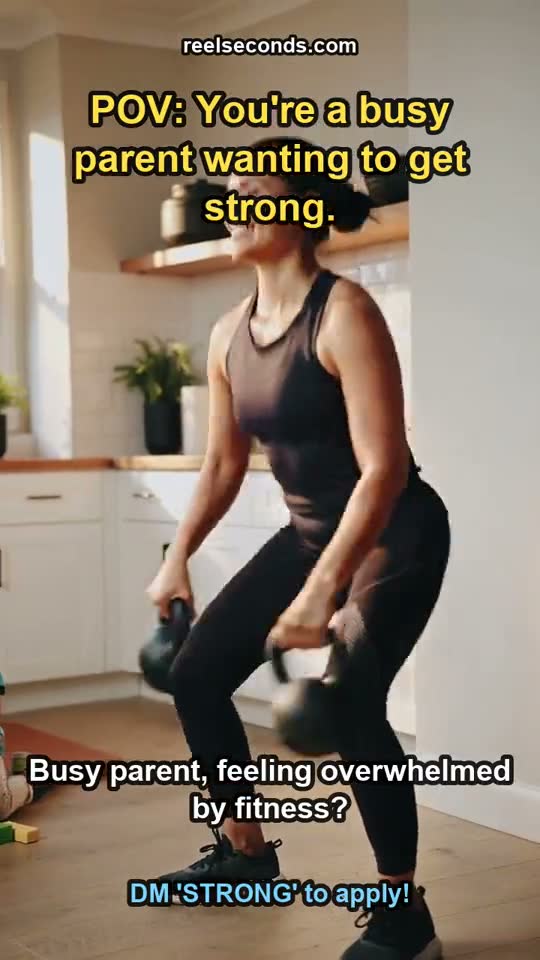
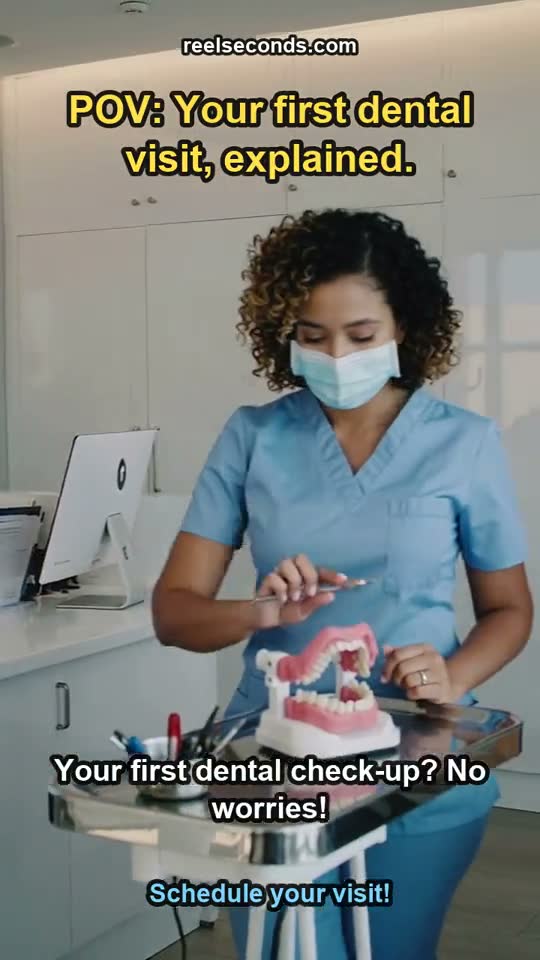
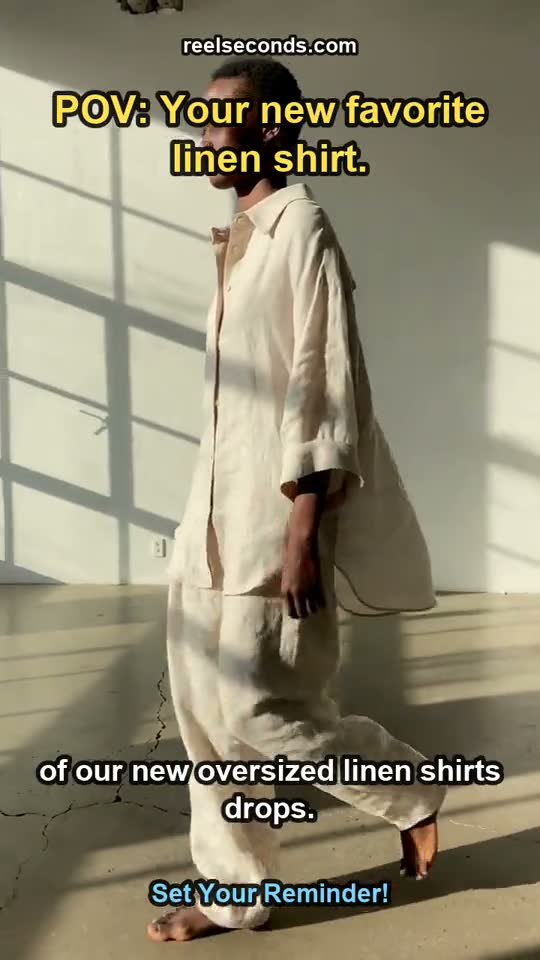
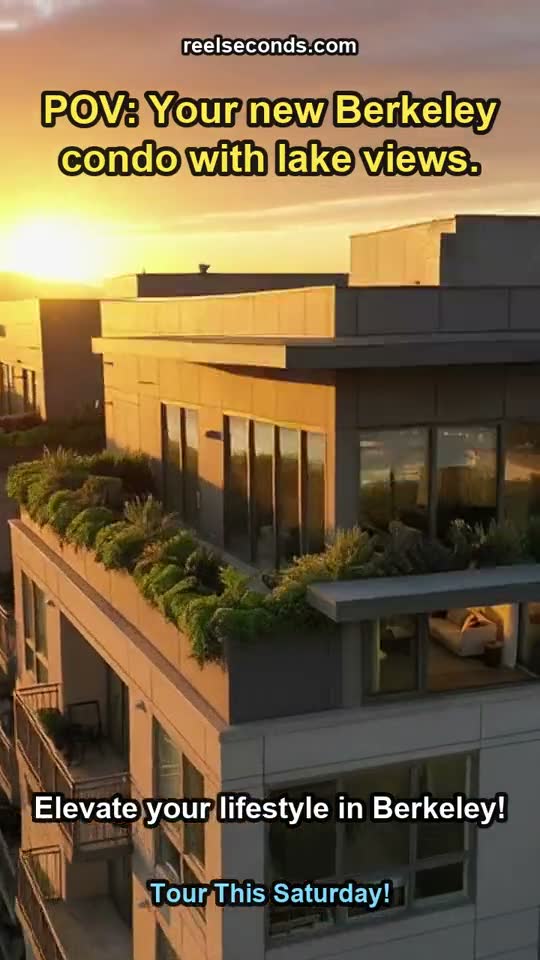
Marketing finals with real typography
Banner headlines, packaging mockups and UI-in-context shots come out with legible, correctly-spelled text — a finished asset rather than a draft that needs fixing.
Thumbnails and covers at volume
Render every title variant you are considering on the one-credit model and let the packaging decide, instead of paying heavyweight prices for drafts.
Hero images and editorial leads
Landing-page heroes need detail that survives a full-bleed viewport — the 2K and 4K tiers deliver texture and fidelity that draft-class models visibly lack.
Custom video start frames
Manufacture the exact frame a video needs — right subject, right ratio — then animate it with image-to-video. The cheapest way to a clip that exists nowhere else.
Model specifications
| Models | GPT Image 2 (1K–4K) · Nano Banana (fast, flat) |
|---|---|
| Mode | Text-to-image (image-to-image on the editor page) |
| Resolutions | 1K · 2K · 4K on GPT Image 2 |
| Aspect ratios | Auto · 1:1 · 16:9 · 9:16 · 4:3 · 3:4 |
| Cost | 1 credit (Nano Banana) · 2 credits (GPT Image 2) |
| Text rendering | Legible in-image text on GPT Image 2 |
| Pipeline | Any still → Kling 2.6 image-to-video |
| Free to start | 20 credits on sign-up |
Good to know
Which models can I generate images with? Two, both live: GPT Image 2 (1K–4K, strong text rendering, image-to-image) and Nano Banana (fast, photoreal, flat-priced). Pick either in the Model Routing selector — the MODEL chip names whichever one actually rendered your image.
What is the difference between the two models? Speed and price versus ceiling. Nano Banana renders in seconds at 1 credit and is ideal for drafts, thumbnails and volume; GPT Image 2 costs 2 credits, offers 1K/2K/4K tiers and produces richer detail for finals. The intended workflow is to draft on Nano Banana and re-render the winner on GPT Image 2.
Can it put readable text in the image? GPT Image 2 is unusually reliable at legible, correctly-spelled text inside an image — headlines, labels, UI mockups. Quote the exact words in your prompt. That capability removes the classic "fix the words in Photoshop" step from AI-assisted design.
What resolutions are available? GPT Image 2 outputs at 1K, 2K or 4K — the resolution knob appears because the model genuinely supports tiers. Nano Banana renders at a single flat quality with no tier selector, which is why the studio honestly shows no resolution control for it.
Can I turn the image into a video? Yes — that is the point of generating it here. Any still becomes the start frame for a Kling 2.6 image-to-video run: make the perfect frame, then animate it. It is the cheapest route to a custom clip whose exact subject you controlled from the first pixel.
Draft on the cheap model, finish on the sharp one, and animate the winner — the image studio above does all three on one balance. Write a prompt, pick a model, and generate the frame your project needs.